What Is Resolution in Pixels? A Simple Guide for Images, Prints, and Screens
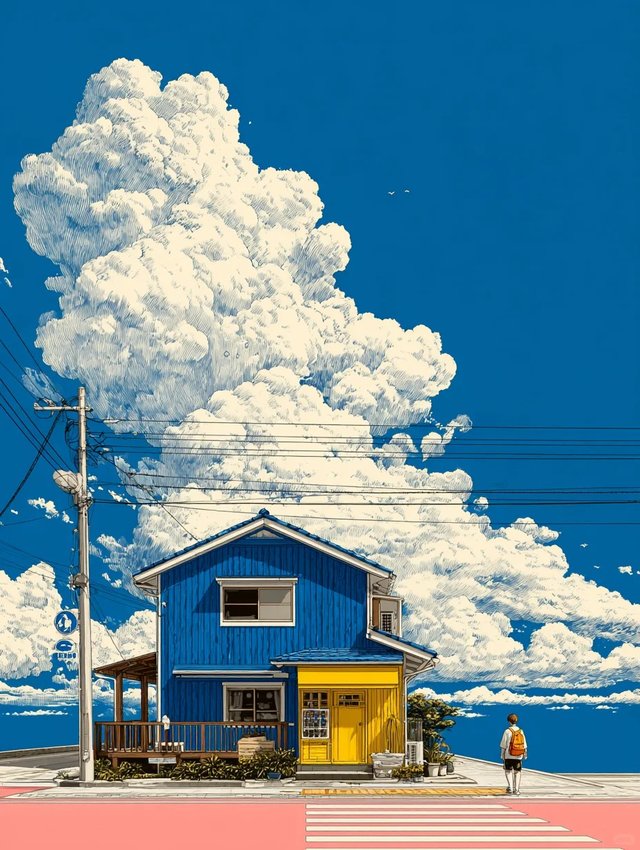
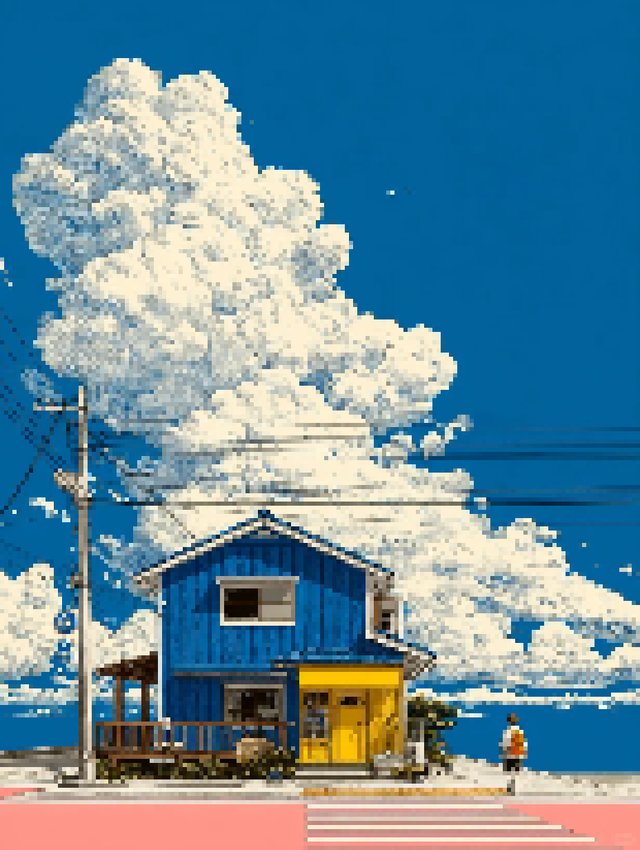
Understand pixel size before you resize, print, or convert an image.
Learn what resolution in pixels means, how pixel dimensions affect screen and print size, and how to choose cleaner settings before you resize or convert an image.
Updated March 2026 by Pixel Art Village Team.
If you are asking what resolution in pixels means, the short answer is simple: it tells you how many pixels make up an image's width and height. A file that is 1920 x 1080 has 1,920 pixels across and 1,080 pixels down. That number affects how much detail the image can hold and how cleanly it can be resized, printed, or converted.
If you want to test image size changes in a practical workflow, try the Image to Pixel Art Converter. If you are editing inside Adobe tools, How to Make Pixel Art in Photoshop is a useful next read.
Quick answer: What is resolution in pixels?
Resolution in pixels means the total pixel dimensions of an image, usually written as width x height. For example, 800 x 600 means the image is 800 pixels wide and 600 pixels tall.
That matters because pixels are the basic units of digital images. More pixels usually mean more detail, but they do not automatically guarantee a better-looking image if the source is blurry or badly resized.
How to read pixel resolution
You will usually see resolution written like this:
- 800 x 600
- 1920 x 1080
- 3840 x 2160
The first number is width. The second number is height. Multiply them together if you want the total number of pixels in the image.
For example, 1920 x 1080 means the image contains 2,073,600 pixels in total.
Resolution in pixels vs PPI and DPI
This is where many people get confused. Pixel resolution is not the same thing as `PPI` or `DPI`.
- Pixel resolution tells you the image dimensions in pixels.
- PPI means pixels per inch and is mostly about screen or print density.
- DPI means dots per inch and is usually a printing term.
In plain English, pixel resolution tells you how much image data you have. PPI and DPI describe how tightly that data is displayed or printed.
Why pixel resolution matters before editing an image
Resolution matters because it changes what you can realistically do with an image.
- A very small image may break apart if you try to enlarge it too much.
- A very large image may hold more detail, but it can still look bad if the source is weak.
- If you are converting an image into pixel art, the starting resolution changes how clearly the main shapes survive after downscaling.
This is why checking pixel dimensions first is a good habit before you crop, resize, print, or convert anything.
How to measure or determine pixel size
Most editors, operating systems, and browser tools will show image dimensions somewhere in the file details or image settings.
A simple workflow looks like this:
- Open the image or inspect the file details
- Find the width and height in pixels
- Decide where the image will be used
- Resize only after you know the target use
If you skip that step, it is easy to resize blindly and lose detail you actually needed.
How to size a canvas without guessing
Canvas size depends on where the image will live. A social graphic, a print, a game sprite, and a blog header all need different dimensions.
The safest approach is:
- decide the final use first
- choose the width and height that match that use
- keep the important subject readable at that size
- test one export before doing lots of extra edits
If you are making pixel art, canvas decisions matter even more because small changes in size can completely change how blocky shapes read.
Does higher resolution always mean better quality?
Not always. Higher resolution gives you more pixels to work with, but it does not fix a blurry source image, bad lighting, weak composition, or heavy compression artifacts.
A larger file can still look bad. A smaller file can still look great if the subject is clear and the image is prepared well.
What resolution really gives you is flexibility. It does not automatically give you quality.
Why this matters for pixel art workflows
If you are turning an image into pixel art, resolution affects the whole workflow.
- It changes how much detail survives after downscaling
- It affects how clean the silhouette looks
- It influences whether the final image feels crisp or muddy
That is why many pixel art problems start before the palette or dithering stage. The real issue is often the source size.
Common mistakes
1. Mixing up resolution and file size
A larger file in megabytes does not always mean the image has more useful pixels.
2. Confusing pixels with PPI
Pixel dimensions tell you the actual image size. PPI is about display or print density.
3. Enlarging a small image too aggressively
Upscaling can make an image larger, but it cannot magically create clean detail that was never there.
4. Choosing canvas size after the edit is already finished
It is usually safer to decide the target use first, then build the image around that size.
FAQ
What is a resolution in pixels?
It is the width and height of an image measured in pixels, usually written as width x height.
Is 1920 x 1080 a pixel resolution?
Yes. It means the image is 1,920 pixels wide and 1,080 pixels tall.
Is pixel resolution the same as PPI?
No. Pixel resolution describes the image dimensions. PPI describes how densely those pixels are displayed or printed.
Does higher resolution always mean a better image?
No. More pixels give you more flexibility, but image quality still depends on the original source, clarity, and editing choices.
Why should I check resolution before converting an image to pixel art?
Because the starting size affects how much detail survives after downscaling and whether the final pixel art stays readable.
Final thoughts
Resolution in pixels is one of the simplest image concepts, but it controls many important decisions later. If you know the width and height first, it becomes much easier to resize cleanly, choose the right canvas, and avoid muddy results.
If you want to test those ideas on a real image, open the Image to Pixel Art Converter and compare how different source sizes affect the final result.
Related Articles
How to Make Pixel Art in Photoshop: Step-by-Step Guide
Learn how to make pixel art in Photoshop with a practical workflow for resizing cleanly, preserving hard edges, reducing colors, and exporting without blur.
Best Pixel Art Converters Compared (2025): Which Tool Fits Your Workflow?
Compare pixel art converters by privacy, control, ease of use, and output quality to find the right fit for photos, sprites, and retro-style artwork.