
Portraits and profile pictures
Use a face or upper-body photo with enough contrast between the subject and the background.
Use this photo to pixel art converter to turn a portrait, pet photo, or camera shot into recognizable pixel art. Adjust the pixel size and colors, then download a PNG.
Drag and drop your photo here
Supports PNG, JPG, GIF, and WEBP - up to 10MB
For logos, screenshots, icons, or mixed image types, use the main converter instead. Use the main image converter
The flower stays recognizable while the fine seed and leaf textures become blocks. This example keeps the photo's colors rather than forcing them into a fixed palette.
Source photo
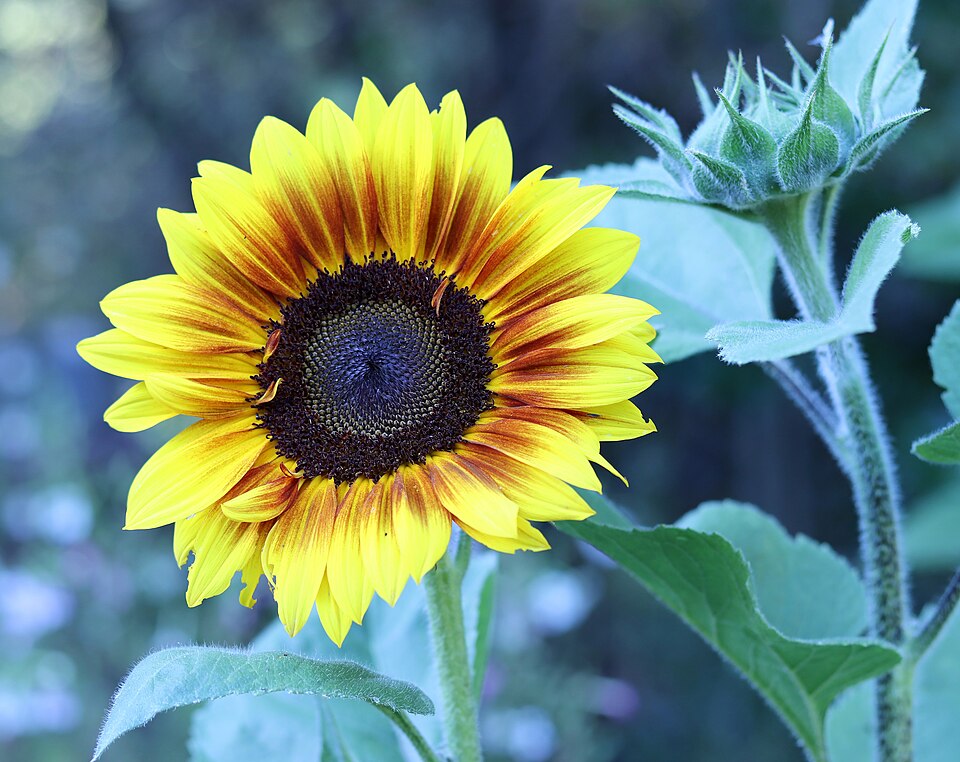
960 x 762 px
Downloaded PNG

80 x 63 px
Actual conversion: Pixel Size 12; Palette None; dithering off; Brightness, Contrast, and Saturation all 0. No crop or background removal.
Export: PNG, Pixel size, grid off. The 80 x 63 result is shown enlarged here without smoothing; preview zoom does not change the downloaded dimensions.
Photo: Sunflower Public Domain by Don McCulley, CC0. The source is Wikimedia's 960-pixel thumbnail of the original photograph. The result was downloaded from this converter without retouching.
Use a face or upper-body photo with enough contrast between the subject and the background.
Choose a photo where the eyes, ears, and outline are easy to see before you reduce detail.
Pick pictures with a simple main shape. Busy backgrounds usually need stronger cropping or fewer colors.
Start with the photo, then tune only the settings that make the subject easier to read.
Pixel Size 12 suits this 960-pixel-wide example, not every photo. Lower it if eyes or petals disappear; raise it if the texture is still too busy.
Start with Palette None to keep skin tones and natural colors. Try a fixed palette for a stylized result, but compare the subject before and after.
Keep color adjustments at 0 first. Increase contrast only if the subject blends into the background; crop the source before uploading if it occupies too little of the frame.
Start with a clear photo or picture, simplify the detail, then export a pixel art version that still keeps the subject easy to recognize.
Choose a portrait, profile picture, pet photo, scenery shot, or other camera image with a clear subject.
Adjust pixel size, palette, contrast, and dithering until the face, object, or scene reads clearly.
Export the result as a PNG and check it at the size where you plan to use it.
Yes. This photo to pixel art converter works for portraits, pet photos, landscapes, and other pictures when you adjust pixel size and palette until the main subject stays readable.
A clear photo with one strong subject works best. Simple backgrounds, good contrast, and a visible outline usually create cleaner pixel art.
Yes. This picture to pixel art page is written for photo and picture sources. The main converter is better for logos, screenshots, icons, and mixed image types.