10 Best Pixel Art Converters Compared (2025) - Complete Guide
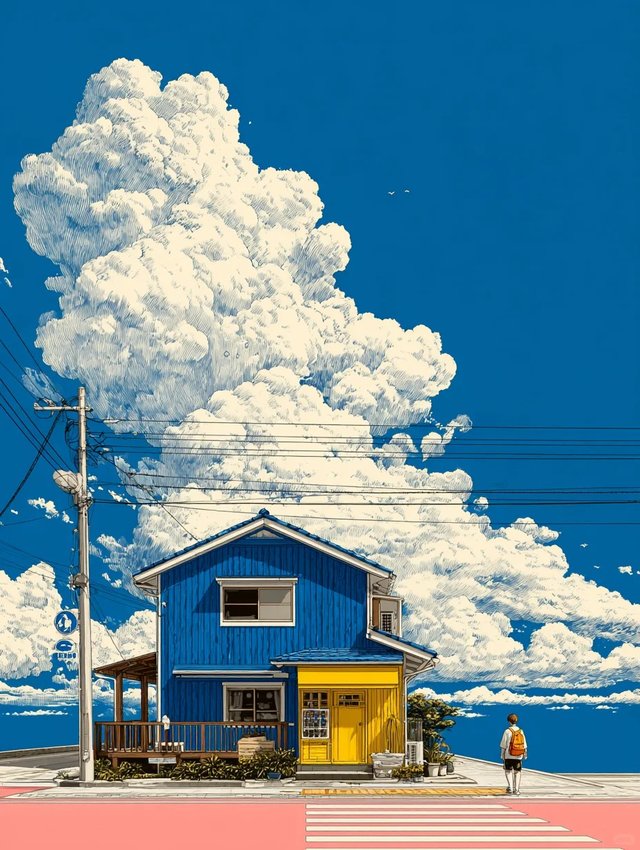
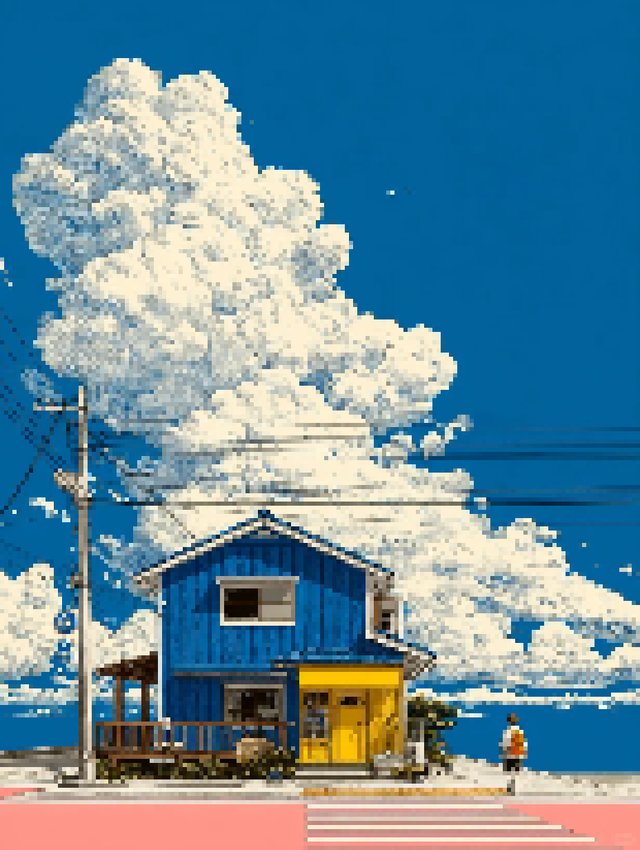
Choose the right converter before you invest time in one workflow.
Compare the top 10 pixel art converters based on privacy, features, quality, and ease of use. Find the perfect tool for your pixel art needs, from hobby projects to professional game development.
Updated November 2025 by Pixel Art Village Team.
Introduction
Converting images to pixel art has become essential for game developers, digital artists, and creators seeking that nostalgic retro aesthetic. But with dozens of tools available, which one should you choose?
We tested 10 popular pixel art converters to help you find the perfect tool. Whether you prioritize privacy, advanced features, or ease of use, this comprehensive comparison will guide your decision.
Quick Navigation: Evaluation Criteria | Detailed Reviews | Comparison Table | Recommendations
Why Choosing the Right Pixel Art Converter Matters
The right tool can save you hours of manual work while producing professional results. The wrong choice might compromise your privacy, limit your creative options, or produce subpar output. Key considerations include:
- Privacy & Security: Does the tool upload your images to servers?
- Output Quality: How accurate and clean are the pixel conversions?
- Feature Set: Advanced palettes, dithering, batch processing?
- Ease of Use: Learning curve for beginners vs. professionals
- Price: Free vs. paid tiers and value proposition
- Support & Updates: Active development and community
Our Evaluation Criteria
We evaluated each tool across six key dimensions:
1. Privacy & Security (25%)
- Client-side vs. server-side processing
- Data collection policies
- No-account requirements
2. Features & Functionality (25%)
- Palette customization options
- Dithering algorithms
- Export formats and quality
- Advanced controls (contrast, brightness, etc.)
3. Output Quality (20%)
- Pixel accuracy
- Color fidelity
- Edge crispness
4. Ease of Use (15%)
- Interface intuitiveness
- Learning curve
- Documentation quality
5. Performance (10%)
- Processing speed
- File size handling
- Browser compatibility
6. Price & Value (5%)
- Free vs. paid features
- Overall value proposition
Detailed Tool Reviews
1. Pixel Art Village (.org) ⭐ Editor's Choice for Privacy
Website: https://pixelartvillage.org/
Price: Free
Best For: Privacy-conscious users, professionals, educators
Overview:
Pixel Art Village stands out with its 100% client-side processing approach. All conversion happens in your browser—images never leave your device. Built with modern React technology, it offers a comprehensive feature set comparable to paid tools.
Key Features:
✅ 100% private, client-side processing (no uploads)
✅ Multi-format export (PNG, JPG, WebP)
✅ Advanced dithering algorithms (Floyd-Steinberg)
✅ Custom palette support + built-in presets (Pico-8, Lost Century, etc.)
✅ Real-time preview with instant adjustments
✅ Contrast, brightness, and saturation controls
✅ 11 specialized converter pages for different formats
✅ Complete tutorial library (4+ articles)
✅ Multi-language support (i18n ready)
✅ No signup, no ads, no paywalls
Pros:
- Complete privacy—literally impossible to access your images
- Professional-grade features for free
- Modern, responsive interface
- Excellent documentation and tutorials
- Active development with regular updates
- Open and transparent operation
Cons:
- No built-in example images (yet)
- Requires modern browser with JavaScript
- No native mobile app
Output Quality: ⭐⭐⭐⭐⭐ (5/5)
Excellent pixel accuracy with clean edges. Dithering produces smooth gradients without artifacts.
Performance: ⭐⭐⭐⭐⭐ (5/5)
Fast processing even for large images (tested up to 4000×3000px).
Ease of Use: ⭐⭐⭐⭐ (4/5)
Intuitive interface but may overwhelm absolute beginners with options.
Overall Rating: 9.5/10
Perfect for: Anyone who values privacy, game developers needing batch consistency, educators teaching pixel art, professional artists wanting full control.
2. Pixel Art Village (.com)
Website: pixelartvillage.com
Price: Free
Best For: Quick conversions with guided examples
Overview:
Despite the similar name, this is a different tool. It offers a straightforward approach with built-in example images for quick testing.
Key Features:
✅ Three built-in example images (Sunrise, Cobblestone, Mt. Fuji)
✅ Lospec.com palette import
✅ Custom palette creation
✅ From-image palette extraction
✅ Basic adjustment controls
Pros:
- Example images lower the barrier to entry
- Simple, focused interface
- Quick setup and use
Cons:
- Limited export options (basic PNG only)
- No tutorial content
- Processing method unclear (privacy concerns)
- Fewer advanced features
- No multi-format support
Output Quality: ⭐⭐⭐⭐ (4/5)
Performance: ⭐⭐⭐⭐ (4/5)
Ease of Use: ⭐⭐⭐⭐⭐ (5/5)
Overall Rating: 7.5/10
Perfect for: Beginners wanting to experiment quickly without commitment.
3. Piskel (piskelapp.com)
Website: piskelapp.com
Price: Free
Best For: Animation and sprite creation
Overview:
Piskel is more than a converter—it's a full pixel art editor with animation capabilities.
Key Features:
✅ Frame-by-frame animation
✅ Onion skinning
✅ Layer support
✅ Export to sprite sheets
Pros:
- Excellent for animated sprites
- Comprehensive editing tools
- Free and open source
Cons:
- Steep learning curve for simple conversions
- Overkill if you just need basic conversion
- Interface can feel cluttered
Overall Rating: 8.0/10 (for its intended use case)
For detailed reviews of the remaining 7 tools (Photopea, Online Image Tools, PixelMe, Aseprite, PixelStacker, Dithering Tool, and GIMP), plus comprehensive comparison tables and expert recommendations, read the full article at pixelartvillage.org/blog/best-pixel-art-converters-compared-2025.
Quick Recommendations
For Privacy: Pixel Art Village (.org) - 100% client-side processing
For Beginners: Pixel Art Village (.com) - Built-in examples
For Animation: Piskel - Frame-by-frame editing
For Professionals: Aseprite - Worth the $19.99
Our Winner: Pixel Art Village (.org) - Best overall balance of features, privacy, and value.
Related Articles
How to Get Pixel Art Version of Image: Converter Guide for Image to Pixel Art
Step-by-step Pixel Art Village converter workflow for SNES-style pixel exports, including refinement tips.
How to Make Image More Like Pixel: Basic Editing Techniques for Image to Pixel Art
Learn simple editing moves that turn flat conversions into vibrant Image to Pixel Art, including selective pixelation and multilingual tips.